
Pace Flags LED Profiles Manual

This guide covers the installation and configuration of the Pace Flags LED profiles for SimHub. The profiles are available for LED Brows (8 RGB LEDs) and the 8x8 LED RGB Matrix (Sim Flags).

Installation Guide LEDs

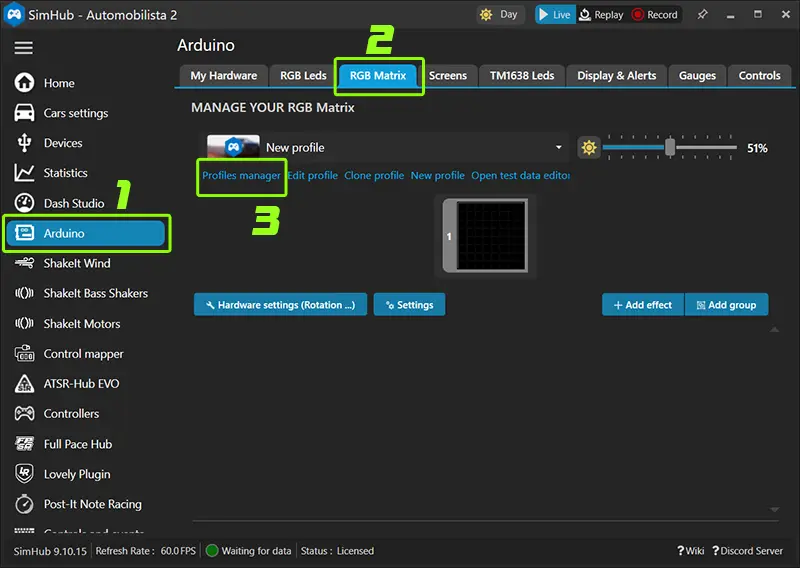
SimHub Arduino Menu

1. Open SimHub Arduino Settings

- Open SimHub and select Arduino from the main navigation menu.

- Navigate to the appropriate tab: RGB LED tab for 8 LED Brows or RGB Matrix tab for 8x8 LED Sim Flags.

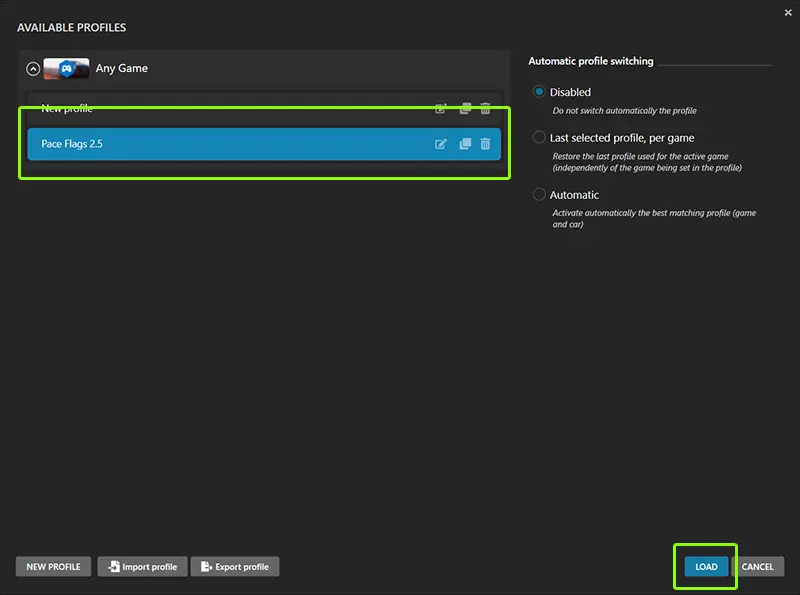
- Open the Profile Manager.

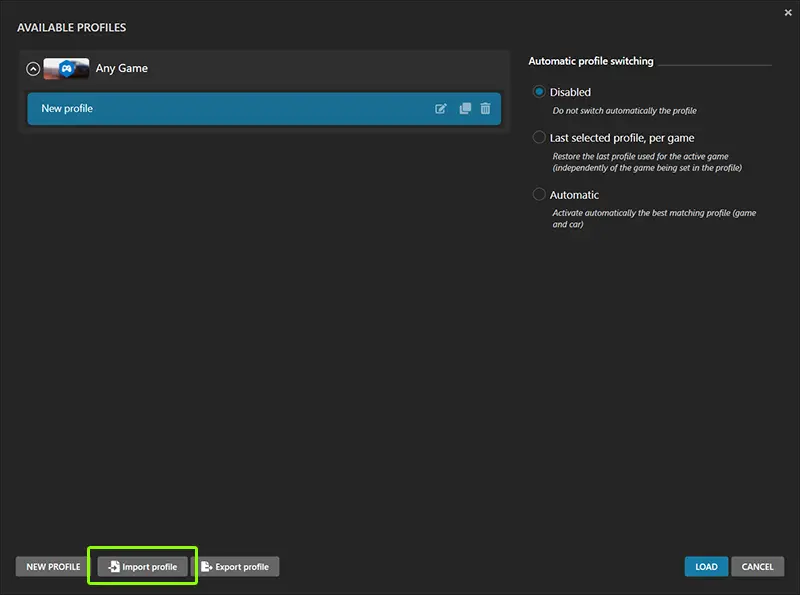
Profile Manager Import

2. Import Profile

Click the Import Profile button.

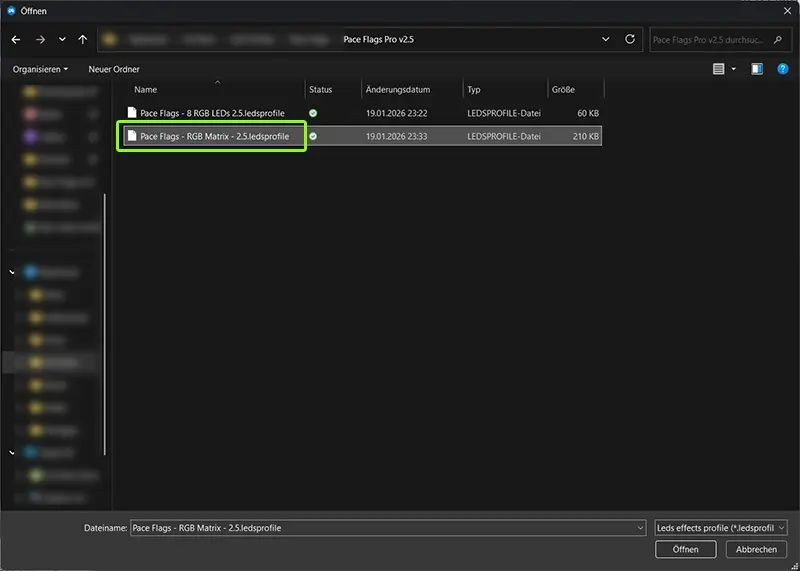
Select Profile File

3. Select Profile File

Select the respective LED profile file from the downloaded package.

Load Profile

4. Load Profile

Load the imported profile. The profile will be added to your SimHub profile library and is ready for configuration.

Effect Selection

5. Select Effects

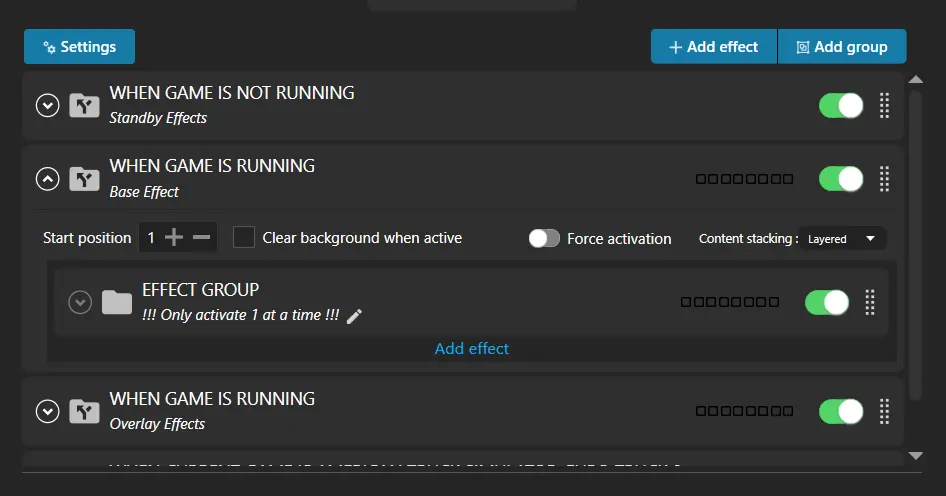
Expand the folders to select your desired effects.

You can choose from idle effects, base effects, and overlay effects. Base effects can only run one at a time, while multiple overlay effects can be active simultaneously.

Installation Guide Ambient Lights

SimHub Ambient Lights Setup

Setup Ambient Lights

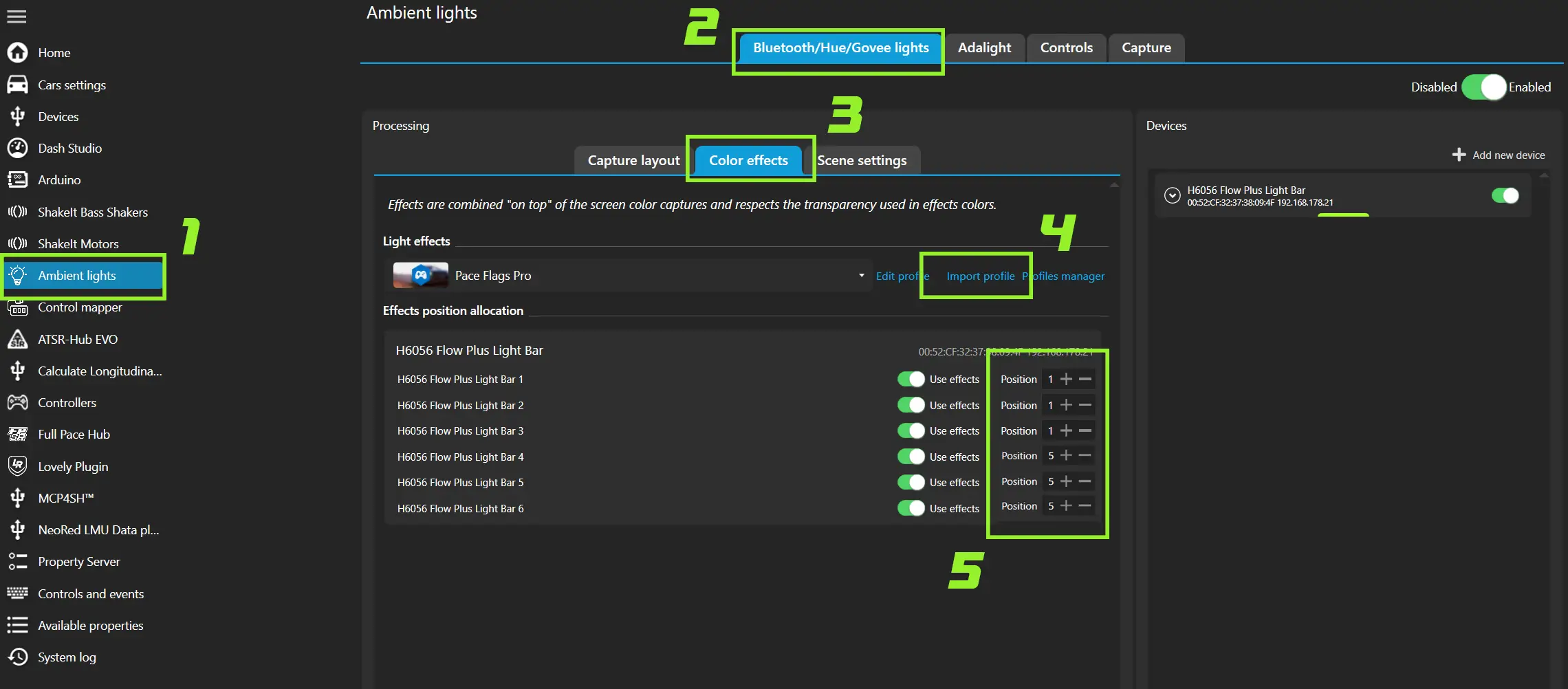
1. Click Ambient Lights in the SimHub main menu.

2. Navigate to the Govee/Adalights/Bluetooth tab.

3. Switch to the Color Effects tab.

4. Click Import Profile and select the Pace Flags Ambient Lights profile from the downloaded package.

5. Assign your LEDs to the correct positions: Use Position 1 for lights on the left side and Position 5 for lights on the right side.

Wheels Lock & Slip Effect Setup

Wheels Lock and Slip Setup

The Wheels Lock & Slip effect requires an additional bass shaker profile, as this information is computed exclusively for shaker effects.

Setup Instructions

  1. Go to Shake It Bass Shakers in the SimHub main menu.

  2. Open the Profiles Manager, Click Import Profile and select the Wheels Lock & Slip profile..

  3. If you're already using a bass shaker profile:

    • Hover over the effect name in the imported profile
    • Click "Copy effect to clipboard"
    • Switch to your own bass shaker profile
    • Click the blue "Paste Effect" button in the top right corner