Pacelogic Pro Manual
Complete guide to installing, configuring, and using all features of Pacelogic Pro.
Navigate through each section to learn how to get the most out of your dashboard.
Updating the software
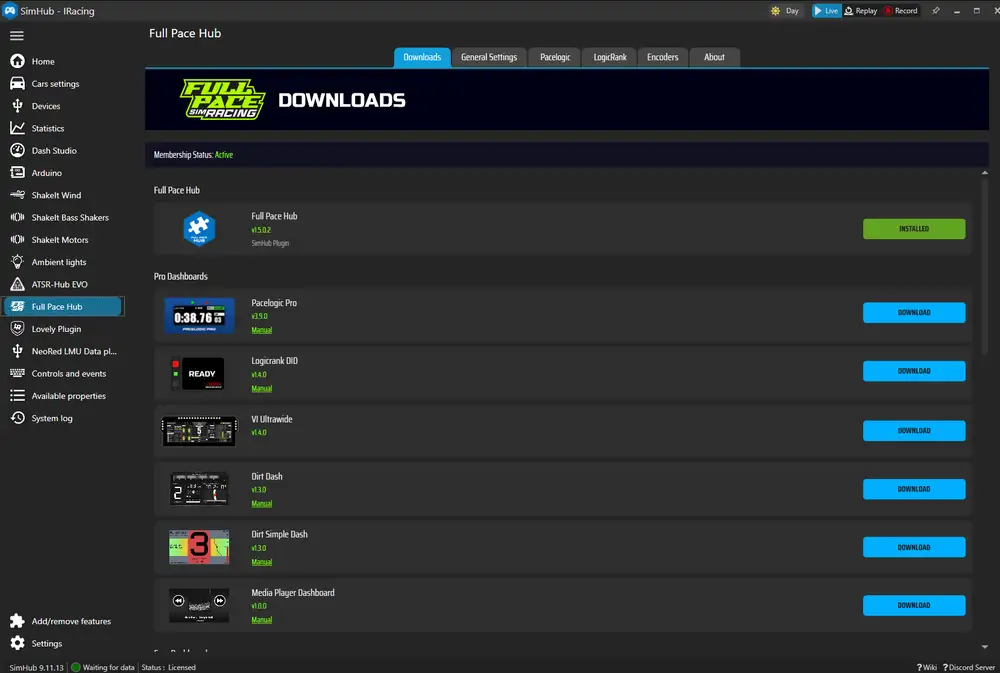
💡 If an update is available you will get a notification on the dashboard. Downloads are available directly from the Full Pace Hub plugin's Download tab. For membership dashboards an active subscription is required.
Selecting your device in the Full Pace Hub Plugin
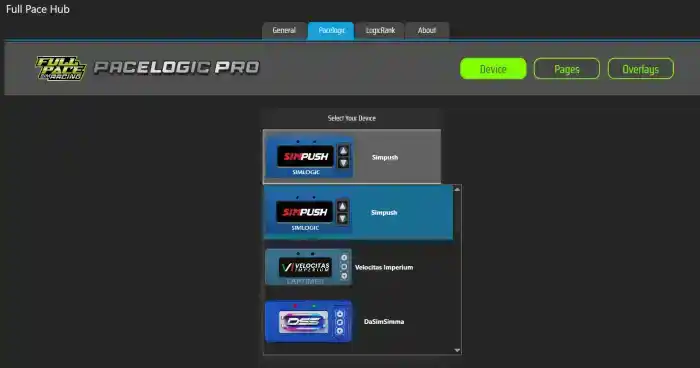
Pacelogic Pro adapts to a wide range of hardware devices and also offers modes for using as an overlay.
Select your device in the Full Pace Hub plugin device section for Pacelogic. If your device is not officially supported, select "other devices" from the list, that allows you to position and scale elements of the dashboard to fit as good as possible.
Demo Version
The Demo version is a feature-limited version of Pacelogic Pro, available for free through the Full Pace Hub plugin. It includes the following functions:
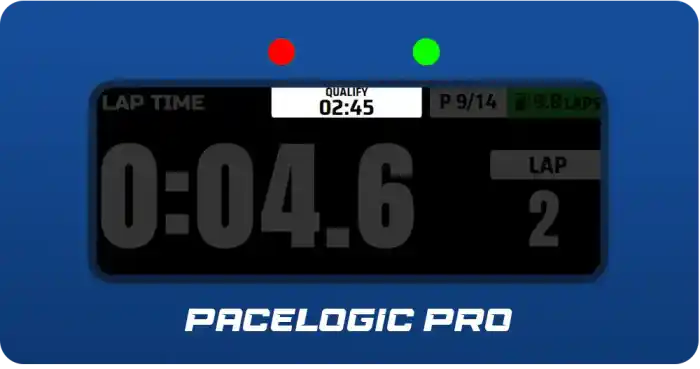
- Lap Time
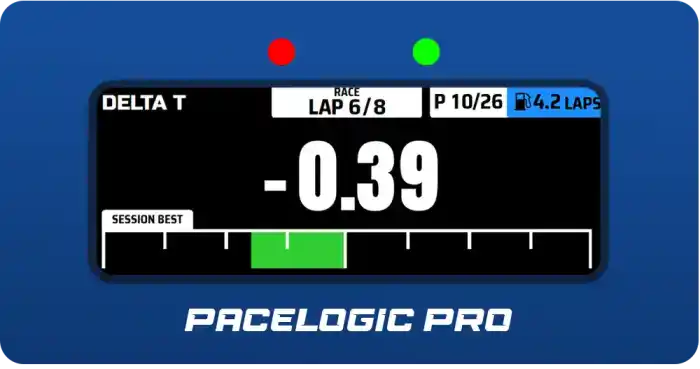
- Delta T
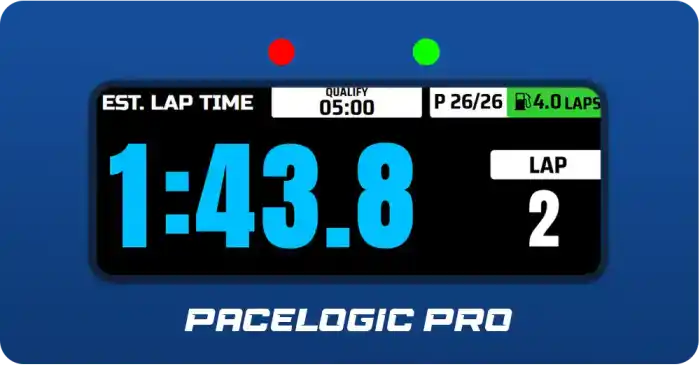
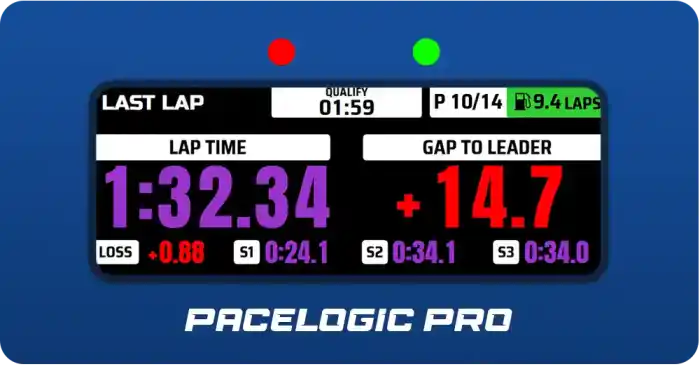
- Last Lap Details
- Speedometer
- Session Progress
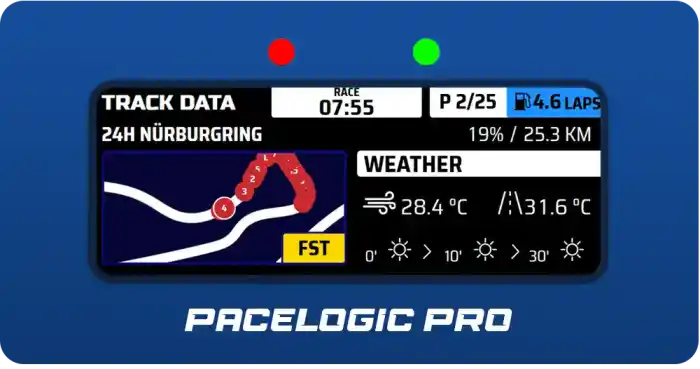
- Track Data
- Pit Screen
- Position
- Remaining Fuel Laps
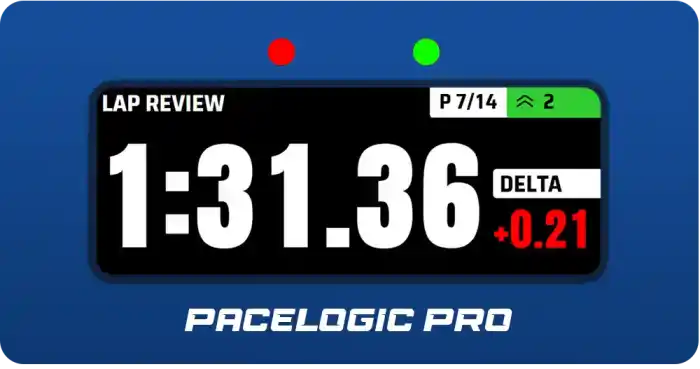
- Lap Review
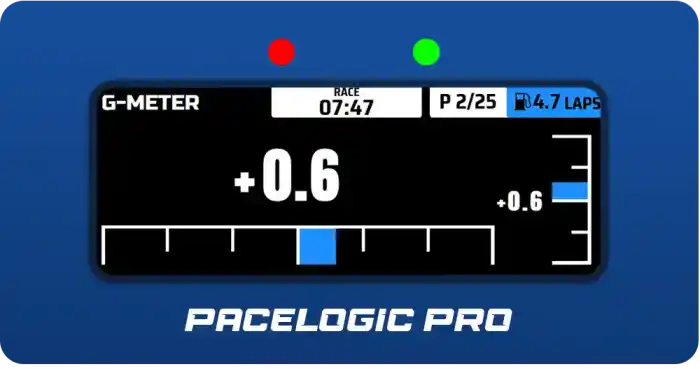
- G-Meter
- Electronic Changes
Customizing the dashboard
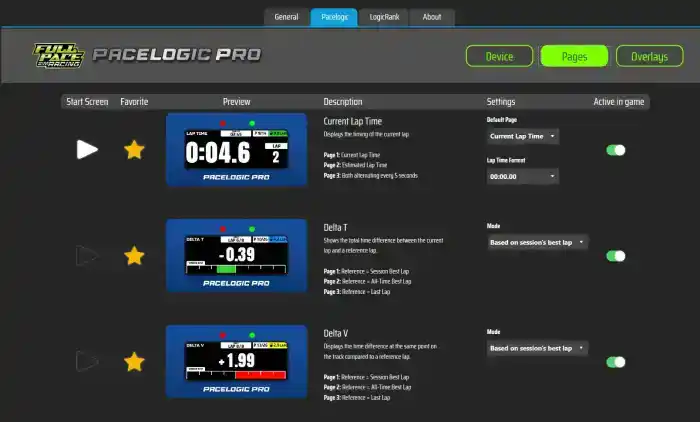
Within the Pages and Overlays tabs in the plugin you can customize the dashboard to your liking. You can disable pages and overlays, set favorites that are quickly accessible via the touch menu or via "Flip Screens", set your preferred start page of the dashboard, default modes and pages, etc.
Touch Controls
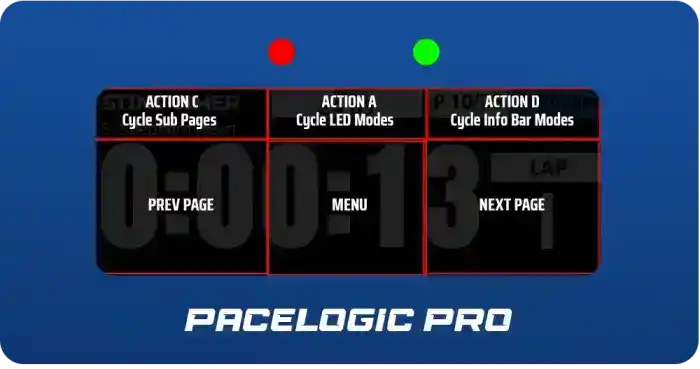
There are six zones on the touch screen that trigger the control actions of the dashboard.
Button Controls
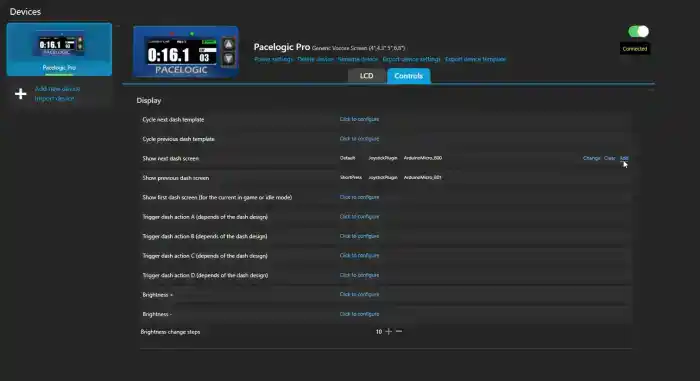
To control the dashboard via buttons go to your Device settings and switch to the Controls tab. Assign buttons to:
- next dash screen
- previous dash screen
- Action C = dash screen sub
- Action A = cycle through led modes
- Action D = Cycle info bar modes

💡 To save buttons you can assign two functions to one button via short and long press. For example you can go to the next screen page with a short press and to previous screen with a long press. Just assign the same button to both functions but change the press type to short / long press (we recommend "long press no auto repeat" over the regular long press)
Flip Screens - Advanced controls via the Full Pace Hub plugin
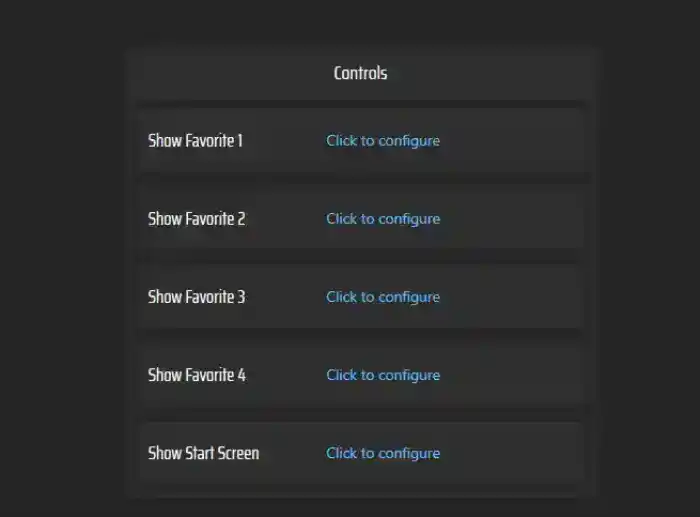
You can further customize your dashboard with our Hub plugin. On the pages tab you can set 4 favorite pages that are not only quickly accessible via the touch menu, they can also be used as what we call "Flip Screens".
In the Pacelogic device tab, assign a hotkey or button to the favorites. With these buttons you can switch to the favorite page for 5 seconds and it flips back to your previous screen. This makes it perfect for quickly checking temps, damage, or leaderboard without leaving your preferred main screen.
Dark Modes
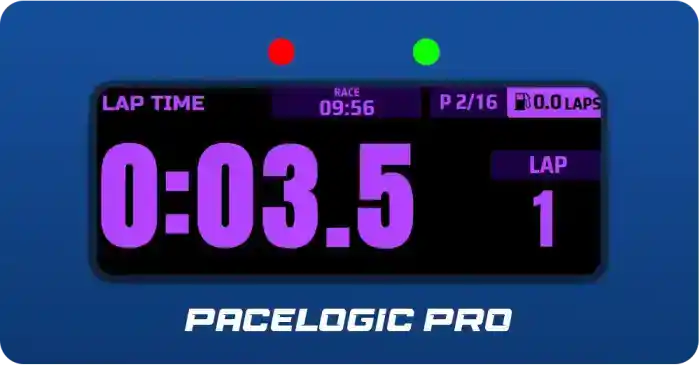
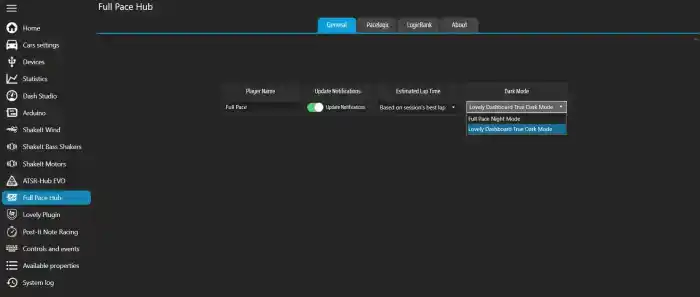
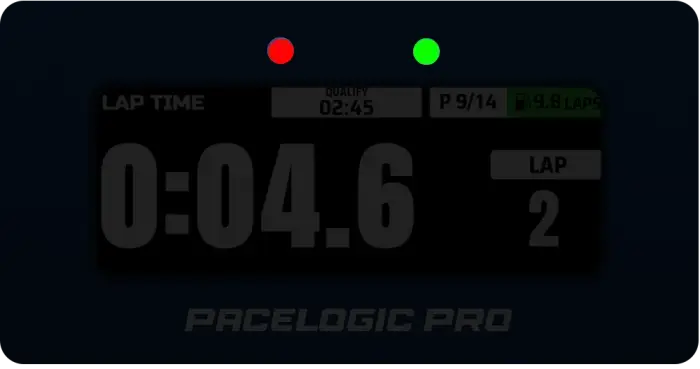
Pacelogic Pro is fully compatible with Lovely Dashboard's True Dark Mode. If you have the Lovely plugin installed, all your dark mode settings are used with Pacelogic as well. Just select Lovely TDM in the plugin Dark Mode. If you don't use the Lovely plugin, you can select Full Pace Night mode as an alternative and assign a button to activate it.